Copying Multiple Points
Use the Point Configuration Manager utility to copy multiple points, using the Facility Point Copy interface. Alternatively you can use CygNet Explorer to access the Point Service (PNT) to copy multiple points in the same manner. See Copying Points for more information about that option.
The multiple point copying method is useful if you are adding a point to one facility and you want other facilities in the system to monitor the same item (for example, you add a point to monitor a communication statistic).
To Copy a Point Using the Point Configuration Manager Utility
You can copy all of the points associated with a facility, or a subset of those points. You can copy points from one PNT to another, and from one current value service to another.
- From the Point Configuration Manager utility, access the Facility Point Copy dialog box as follows.
- Open the utility and select your Point Service (PNT) from the drop-down menu.
- Filter and view points to find the points desired.
- Use Ctrl+click or Shift+click to select the points you want to copy.
- Click the Copy button, or right-click to access the context menu and then select Copy, to access the Facility Point Copy dialog box for the selected service.
|
Click the thumbnail to see |
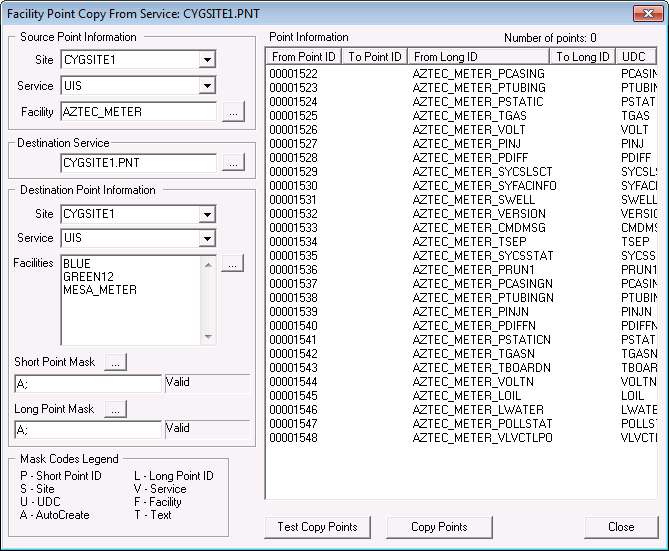
- In the Source Point Information section, specify the Site, Service, and Facility containing the point information to use.
- Select the source Site from the options in the drop-down menu.
- Select the source Service from the options in the drop-down menu.
- Specify the source Facilities. Click ... to access the Choose Source Facility dialog box. Optionally click Advanced Filter to create a filter based on facility attributes.
- In the Destination Service section, specify the Site.Service to which the point will be copied. Either type the name into the text box or click ... to access the Select Service dialog box.
- In the Destination Point Information section, specify the Site, Service, and Facilities to which you want to copy the point.
- Select the destination Site from the options in the drop-down menu.
- Select the destination Service from the options in the drop-down menu.
- Specify the destination Facilities. Click ... to access the Choose Destination Facilities dialog box and configure the list of facilities for which you want to create new points that are copies of the source point, using Ctrl+Click or Shift+Click to make multiple selections. Optionally click Advanced Filter to create a filter based on facility attributes.
|
Click the thumbnail to see |
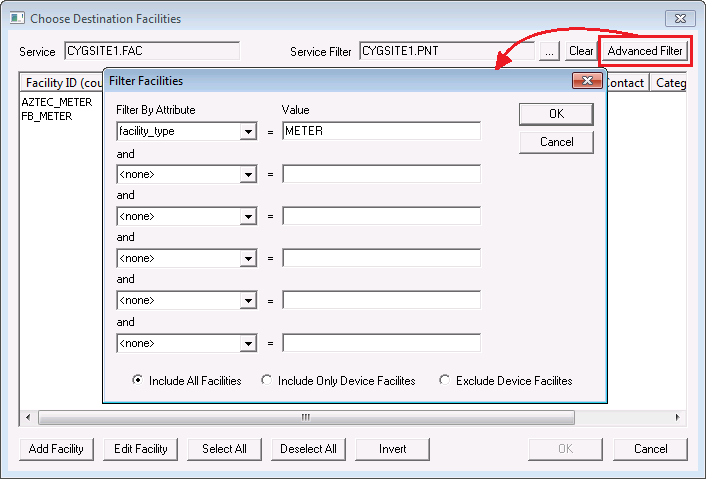
- Define the Short Point Mask to create the Short Point IDs of the new points. Click ... to access the Point Copy Mask Wizard dialog box and configure the Short Point ID mask to copy. See Point Masks for more information.
- Define the Long Point Mask to create the Long Point IDs of the new points. Click ... to access the Point Copy Mask Wizard dialog box and configure the Long Point ID mask to copy. See Point Masks for more information.
- Test Copy the points, and resolve any issues as necessary.
- Copy the points.
More:


